Login to the Central Login Server (login.srv)
Introduction
This article describes how to login to the Central Login Server (login.srv.ualberta.ca), also known as the General Purpose Unix server (gpu.srv.ualberta.ca), which provides file storage space for holders of valid and active CCIDs. Files are stored in the Andrew File System (AFS). Some people use this server for Peoplesoft drop-boxes, or to maintain a personal web page available at sites.ualberta.
(Note: as of April 2023, AFS space is no longer available for alumni and new students.)
Applicability
This article is written for all users with a valid and active CCID wishing to access their file storage space on AFS.
(Note: as of April 2023, AFS space is no longer available for alumni and new students.)
Prerequisites
A valid and active University of Alberta Campus Computing ID (CCID).
(Note: as of April 2023, AFS space is no longer available for alumni and new students.)
Procedure
Mac
1. Open Terminal in Finder > Go > Applications > Utilities
[Note: You can also find Terminal by searching for it in the Mac Spotlight (⌘-Space)]
2. Type "ssh yourccid@login.srv.ualberta.ca and press Enter
[Note: Use your own CCID in place of "yourccid"]
3. If prompted that the server host key is not cached, type yes and press Enter
4. When prompted for a password, use your own CCID password and press Enter
Windows
Verify whether OpenSSH is installed in Windows:
1. Right-click on the Start Menu
2. Choose Settings
3. Choose Apps
4. Click on Optional features
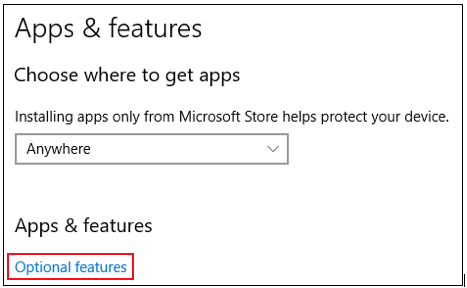
5. Scroll down to OpenSSH, and expand the item
If Windows indicates that you may "Uninstall" OpenSSH, it is already installed. Otherwise, click to install it
When you are sure you have OpenSSH installed:
1. Open a Run dialog by pressing the key combination WindowsKey+R
2. Type cmd, and click OK
3. At the command prompt, type ssh yourccid@gpu.srv.ualberta.ca and press Enter
[Note: Use your own CCID in place of "yourccid"]
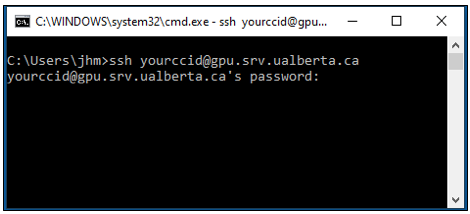
4. If prompted that the server host key is not cached, type yes and press Enter
5. When prompted for a password, use your own CCID password and press Enter